Connect to ChatGPT, Claude or other LLMs
Introduction
Connect Drakdoo to an AI assistant to get help with Drakdoo features, indicators, and alert scripts directly from your conversations. The integration uses the Model Context Protocol (MCP), which gives a compatible assistant access to Drakdoo's tools and documentation.
This guide uses ChatGPT as an example. You can also connect Claude or another AI assistant that supports custom MCP servers. The names and locations of the settings may differ between assistants, but the Drakdoo server address and authorization process are the same.
Before You Begin
You will need:
- A Drakdoo account.
- An AI assistant that supports custom MCP servers.
- Permission to add a custom MCP server to your AI assistant. Some providers may restrict this feature to certain plans or workspaces.
Connect ChatGPT to Drakdoo
Open the ChatGPT plugins page. Select Add, then choose Add custom MCP server.
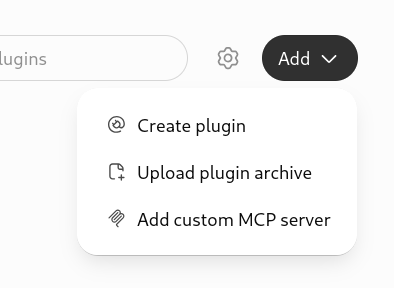
Adding a custom MCP server in ChatGPT Enter the following connection details:
- Name: Drakdoo
- Server URL:
https://data.drakdoo.com/mcp - Authentication: OAuth
Review the security notice, confirm that you want to continue, and select Create as a plugin.
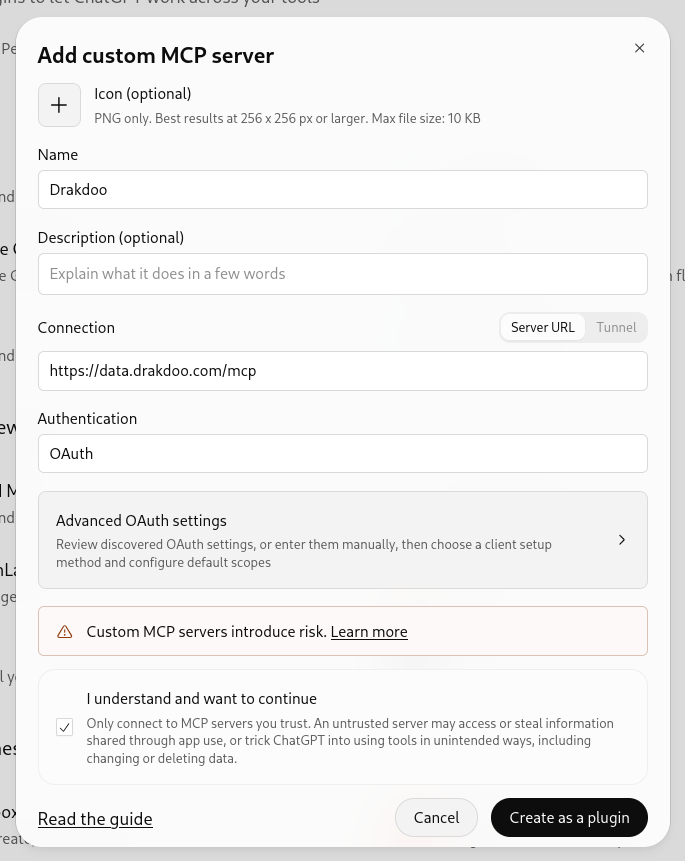
Configuring the Drakdoo MCP server in ChatGPT When ChatGPT prompts you to connect the new plugin, select Connect Drakdoo.
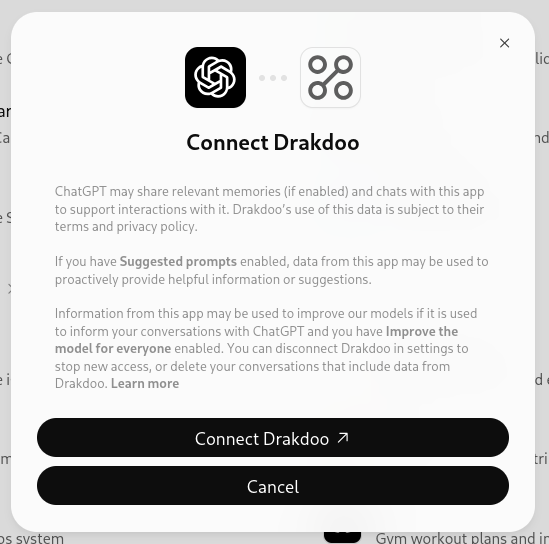
Connecting the Drakdoo plugin to ChatGPT Sign in to Drakdoo if requested. On the authorization screen, review the requested permissions and make sure Access MCP services is selected. Then select Authorize.
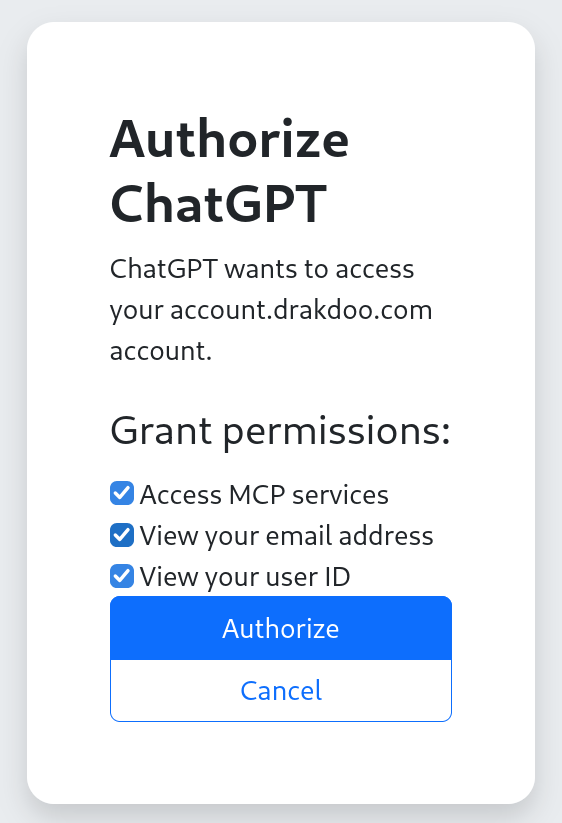
Authorizing ChatGPT to access Drakdoo MCP services
Try the Connection
Return to ChatGPT and start a new conversation. Ask a Drakdoo-specific question. You must mention @Drakdoo in your prompt, including the @ symbol, to invoke the Drakdoo integration. For example:
Help me write a script for @Drakdoo that alerts me when the RSI is over 80 for at least five candles.
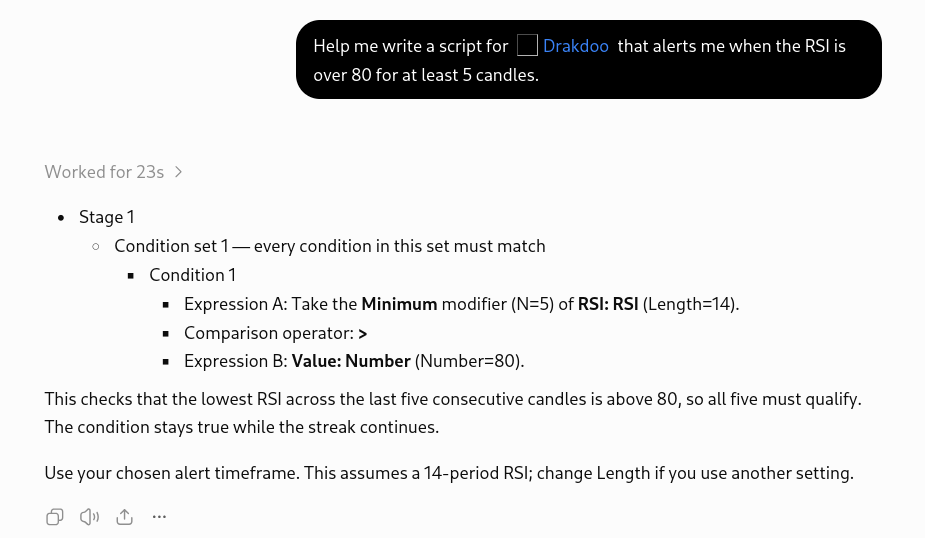
Always include @Drakdoo when you want ChatGPT to use the integration. If ChatGPT returns guidance based on Drakdoo's alert system, the connection is ready to use.
Using Another AI Assistant
In Claude or another MCP-compatible assistant, add a custom remote MCP server with the URL https://data.drakdoo.com/mcp. Complete the OAuth sign-in and grant access to Drakdoo's MCP services when prompted. Consult your assistant's documentation if you need help finding its MCP server settings.
Disconnecting Drakdoo
You can stop access at any time by removing or disconnecting the Drakdoo plugin in your AI assistant's settings. Reconnect it and complete the authorization process again whenever you want to restore access.